
Travelling with ‘the Cloud’

Modern travelling involves creating and storing lots of data, such as electronic tickets, photographs, and other travel documents. While all this data makes travelling more convenient, it brings its own problems: you're going to have a lot of data to store, you're going to need to keep it safe, and you're going to need to get to it quickly and reliably when you need it. There is a solution to all of this – Cloud storage. If you want to know what Cloud storage is, and how you can use it, read on and find out!
Solving the travelling data problems
The first and most obvious problem with all of this data is the sheer likely volume of it – especially if you take lots of photos and videos, and like to keep lots of music and movies on hand to listen to and watch on those long flights, and bus and train journeys. If you're using a laptop this isn't likely to be a big problem because you probably have a big hard-disk drive, but mobile devices such as phones and tablets can fill up pretty quickly, even with a big and expensive storage card inserted.
Another problem is keeping these files safe from being lost. While you can keep all of your files on your phone, your tablet and your laptop, and even back them up on a flash drive, it is possible (although unlikely) that you may lose all of these devices at once, and all of your files with them.
And another problem with these files is ensuring that you can always access them when you need them – when you are traveling you may need to get to them immediately, reliably, and easily, maybe to pacify that immigration or border police officer. To achieve this you can keep your files on your mobile devices – phone, tablet, or laptop – so that you always have them accessible. To cover yourself regardless of which device you have with at any given time, and to avoid the need to remember which file you put on which device, you need put all of your files on all of your devices, so that you can go to whichever device you have handy to get what you need.
For this to work well you must keep the files on all of your devices synchronised – so that you have the current versions of each file available on all devices – if you change, add, or delete a file on one of your devices you will need to make that change on all of your devices so that your files are coordinated and up to date.
There may also be times when you need to access your information when you don't have any of your devices with you at all, but you do have access to the internet.
The answer to all of these issues is to use ‘the Cloud’.
The Cloud
The Cloud is a term that describes file storage space where you can keep your information and files, which is provided by somebody else, and which you access only through your Internet connection.
You probably already use the Cloud without knowing it, because every time you use a website, an application, or a device that stores and accesses information about you through your internet connection, it's part of the Cloud. For example, if your email client application uses a MAPI connection, and it probably does (MAPI stands for Messaging Application Programming Interface, but don't let that worry you), then all your emails messages are kept on your email service provider’s server rather than on your devices. Apart from saving space on your device and keeping your messages safe, this enables you to access your email messages from any of your devices, anywhere that you have an internet connection.
When you store your information and files in the Cloud you don't get to know their actual physical location – they will be in some unknown place somewhere on the planet. That may make you nervous, but really, it doesn't matter.
If you'd like to know even more about the Cloud, you can find out about it here, but you really don't need to.
Why ‘The Cloud’?
So why is this setup called ‘The Cloud’? I really don't know the answer to this – I'm guessing it's because you don't get to know the location at which your files and information are actually kept: they could be anywhere on the planet, and may not even be kept together; so it seems like a vague, vaporous sort of storage – like a cloud!
Cloud storage
The part of the Cloud that you can use most directly is personal Cloud storage. Cloud storage resolves all of the problems of looking after your data files as you travel that I've described.
Cloud storage is very useful to a traveller in a multitude of ways, the most prominent being: making space on your devices, backing up your files and pictures, synchronising your files and pictures between your different devices so that you can access all of them on any of your devices, and sharing files and pictures with other people – especially files that are too big to email.
What Cloud storage is
Cloud storage is servers (big computers) somewhere – could be anywhere on Earth – with lots of hard-disk-drive space. Your connection to the Internet allows you to put your files and other information onto this hard-disk-drive space. Once your files are stored on Cloud storage you access them either through a web page on a personal computer or through applications that run on your devices, which allow you to get to the files as though they are on your devices, as long as you are connected to the internet.
Because using Cloud storage is a bit like having an external hard-disk drive or a flash drive that you can't see, in use, it is commonly called a Cloud drive. The whole encompassing process of using the Cloud is called Cloud-computing.
Using Cloud drives
Many companies provide online Cloud drives. I'm only looking closely here at the three services that I use: Microsoft OneDrive, Dropbox, and Google Drive. These three services have many similarities and some differences.
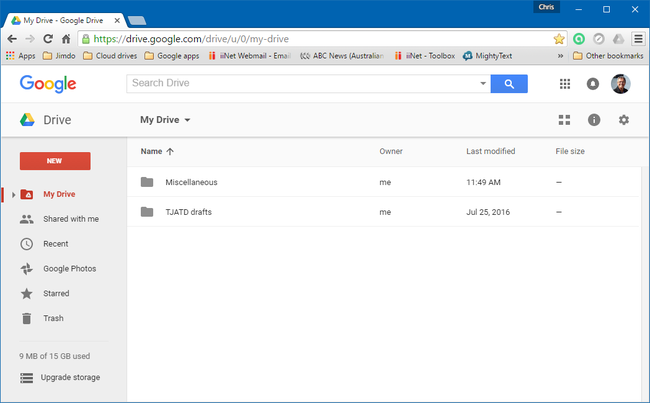
To use these online Cloud drives you need to create an account with the Cloud service provider. Once you have set up your account, which you can do for free, the simplest way to access the online Cloud drive is on your browser, through the webpage interface that each company provides. The webpage interface gives you the means to add files to the online Cloud drive, generally by simply dragging and dropping the files onto the webpage, or by using the commands provided on the webpage. You can also add folders to the online Cloud drive so that you can organise your files efficiently. This is what my webpage interface for Google Drive looks like on Chrome browser on my Windows 10 laptop:
For more convenient and more sophisticated access to your online Cloud drive, a Cloud drive can be installed as an application (app) on your device. There are different apps for different sorts of devices.
Cloud-drive apps for a personal computer
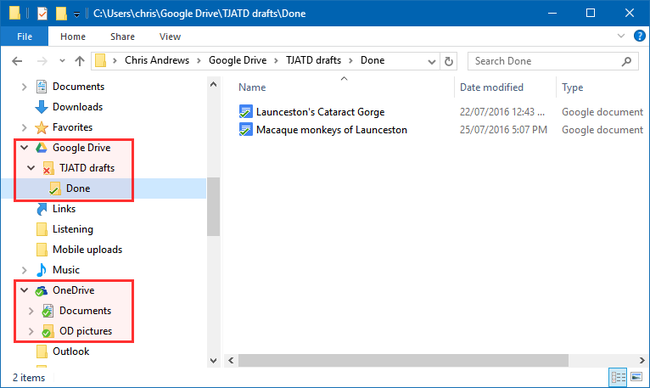
When you install a Cloud-drive app on a Windows or Apple personal computer, a folder, with the same name as the online Cloud-drive service, is created on your hard-disk drive in your personal user folder. When you put files or folders into your Cloud-drive folder on your personal computer they are immediately uploaded to your online Cloud drive through your Internet connection.
When you add files to your online Cloud drive by other means, such as through your phone or tablet, they are downloaded into the folder on your personal computer, so that the Cloud-drive folder on your personal computer and your online Cloud drive on the internet are always synchronised with the same content. For practical purposes, your online Cloud drive effectively becomes a folder on your computer.
This is what my Cloud-drive folders and their sub-folders look like in my Windows 10 Explorer window:
Cloud-drive apps for a mobile device
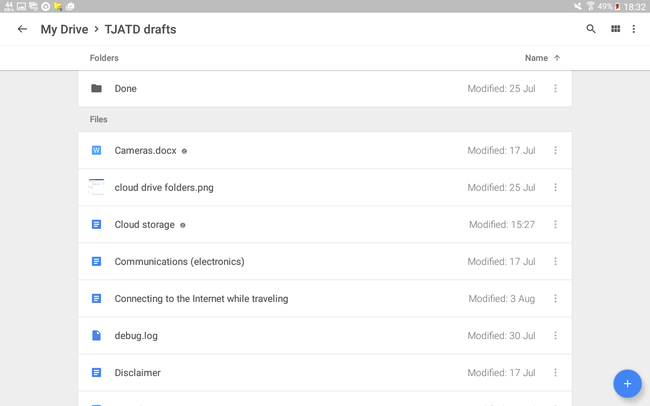
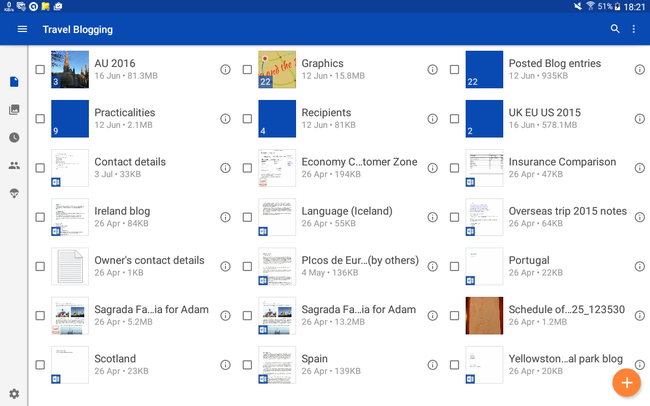
Cloud-drive apps for mobile devices enable you to access the files that you have on your online Cloud drives through an interface on your mobile device. The apps are similar for Android or Apple mobile devices.
This is the interface for the Google Drive app on my Samsung Galaxy Android tablet:
This is the OneDrive app interface:
And this is the Dropbox app interface:

Because mobile devices usually have limited file storage space, and they commonly connect through poor WiFi connections or expensive mobile data connections, Cloud-drive apps for mobile devices don't automatically copy all of your files from your online Cloud drive onto your mobile device – you must download the files that you want to use from your online Cloud drive onto your device as you need them. The download happens as part of the process of opening the files that you see on your Cloud-drive apps.
To use a file that is on your online Cloud drive on a mobile device you open it from the Cloud-drive app in a similar manner to how you would open a file in any local folder on your device, which is usually by tapping it. The Cloud-drive app asks you to select an appropriate editing app to open the file into, and then downloads your file as a hidden copy for you to view or edit.
Unfortunately, a mobile-device Cloud-drive app doesn't operate as a local folder, so generally you can't save your edited file straight back to your online Cloud drive. When you come to save the file the editing app asks you to select a place to keep it, you may then be able to choose to save it back to your online Cloud drive, or you may have to save it to somewhere on your device storage and then move it to your online Cloud drive using a file manager such as My Files.
The Cloud-drive apps incorporate file viewers that let you preview common file types such as pictures or word processor documents.
Offline files on a mobile device
Because a mobile-device Cloud-drive app doesn't download all of your files from your online Cloud drive, you can't access the files that are in your online Cloud drives when you aren’t connected to the Internet.
To resolve this you can select individual files and set them to be available offline. When you do this the Cloud-drive app makes a copy of the file on your mobile device, so that you can open them in the Cloud-drive app and edit it, as you normally would if you are connected to the Internet. When you next reconnect to the Internet the Cloud-drive app automatically uploads the edited files to your online Cloud drive.
Sharing files on your Cloud drive
An incidental benefit of keeping your files on a Cloud drive is that, once they are stored there, you can share them with anyone else without having to email the files to them.
You can send a link for an individual file, or a link for an entire folder to other people so that they can access the files and folders directly. The link can be set up to allow them to merely view the files, or to give them full access so that they can edit and delete the files if they want to. The link can be set up to allow anyone who has the link to have access to the files, or only the person that you have sent the link to, once they have logged into their own account with the Cloud drive service.
Here’s what a link looks like:
https://1drv.ms/f/s!AhbwGt7heYrglDeZR30NRqmueIkC
This is a link to a folder of my travel photos for you to look at, to see how the link works.
Using cloud storage as you travel
So now you know all about using Cloud drives and how useful they are. But it’s your connection to the internet that underpins the efficacy of using a Cloud drive, how good will that be? And how safe and secure are your files on a Cloud drive?
You can find out about connecting to the internet as you travel, here, and about the safety and security of Cloud drives, here.
Share this The Journey and the Destination post using your favourite social media:
Would you like to add something, or ask a question? Add a comment below (you can leave the 'Website' field blank):